
How to create a goal
Author: Ran | Date Created: 10/06/2025 | Date Updated: 10/06/2025
What this is
Need to add a client goal in HMIS? This article will help!
What you need to know
Goals help track a client’s progress toward housing stability, employment, education, or other self-sufficiency measures.
Follow these steps
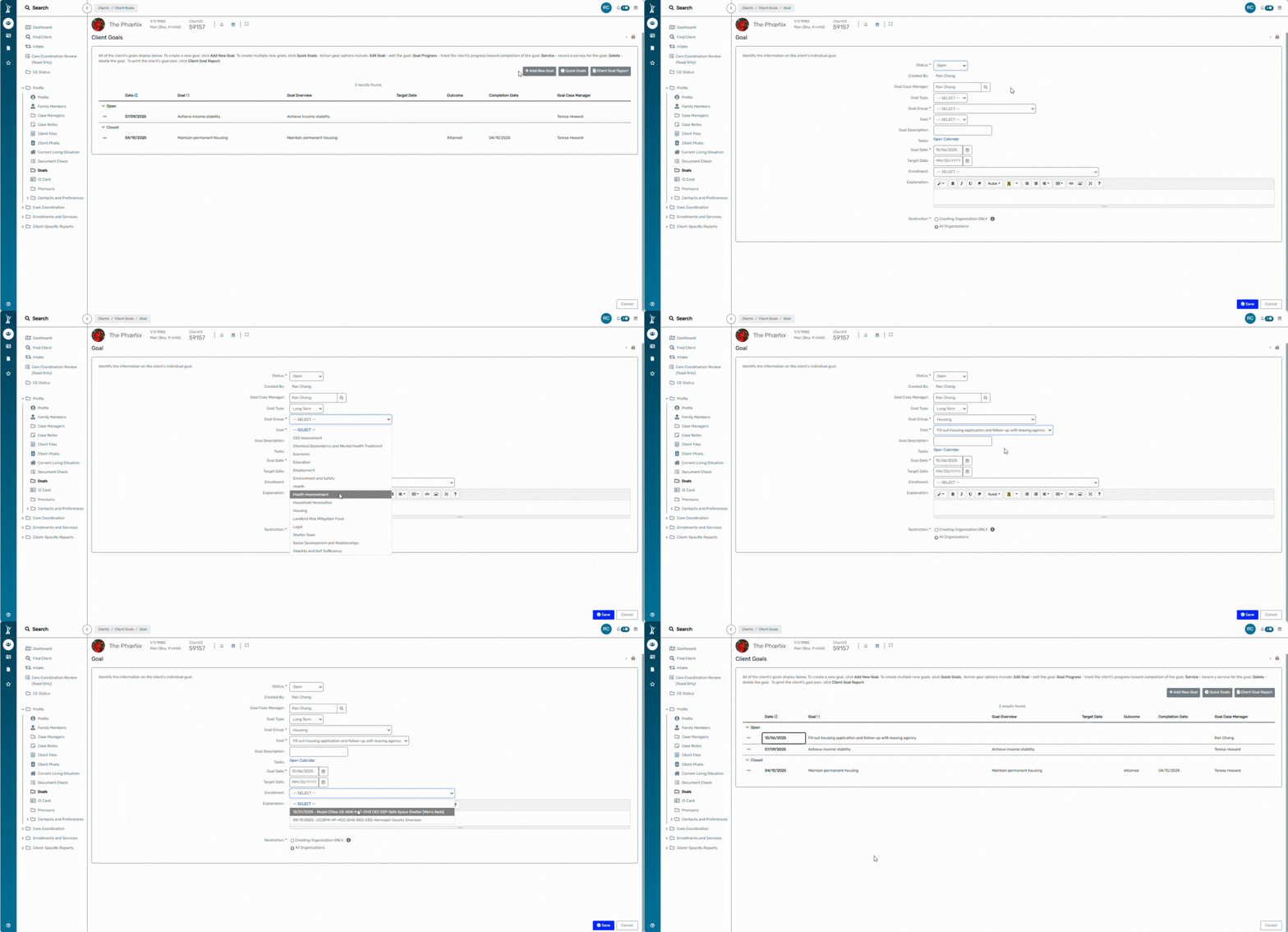
1. Open the client’s record
- In the Client's workspace, find your client.
- On the client's dashboard select Profile → Goals.
2. Add a new goal
- Select, Add New Goal and complete the form fields:
- Status: Open (close when complete)
- Goal Group: Choose a category (for example, Employment, Education)
- Goal: Pick from the list based on the Goal Group
- Description: Add short notes about the goal
- Goal Date / Target Date: Set the start and target completion dates
- Enrollment: Link to the client’s active case management enrollment
- (Optional) Assign another Case Manager, add a Task, or limit visibility under Restriction
- Don't forget to click Save! The goal will now appear in the client’s Goals list.
When you are done
You’ve added a goal for your client. If you need to update or close it later:
- Go to Profile → Goals.
- Click the action button next to the goal.
- Select Edit Goal

- Update the Status to Closed, select either Attained or Discontinued for the Outcome and add a Outcome date.
- Then click Save.
