
How to use the Common Data Checker
Date Created: 12/5/2025| Date Updated: 12/5/2025
What this is
The Common Data Checker helps you find missing, invalid, or incomplete values in the most common data elements in Minnesota’s HMIS.
Use this tool before running any funding-specific or project-type-specific data checkers.
A technical guide is also available as part of REPORTcollectionV2 which can be accessed here. If you have any questions about using this data checker or believe you may have identified issues with the data checker, please contact our helpdesk.
What you need to know
The Common Data Checker displays results by data element and shows whether each one is:
- CDK/PNA – Client Doesn’t Know / Prefers Not to Answer
- Missing – No data was collected
- Invalid – Low-quality or cannot be calculated
- Okay – Complete and usable
- You can fix most issues directly from the Action menu.
Where to find the Common Data Checker
This tool is located in the Home workspace (not the Reports workspace).
- First Stop Data Checkers -> Common Data Checker

Follow these steps

|
Set Data Checker Parameters
Set Additional Criteria Date Range
Filter by User or Case Manager Choose one:
|
Issue Filter Select one:
Show Client Names
|
Then click Search to run
What you will see
For each client enrolled during the date range, you will see the following data:
|
|
What you can do from here
Fix the data right from here. If data is missing or looks incorrect, you can update it directly.
- For example, simply select the action button to update Disabling Condition:
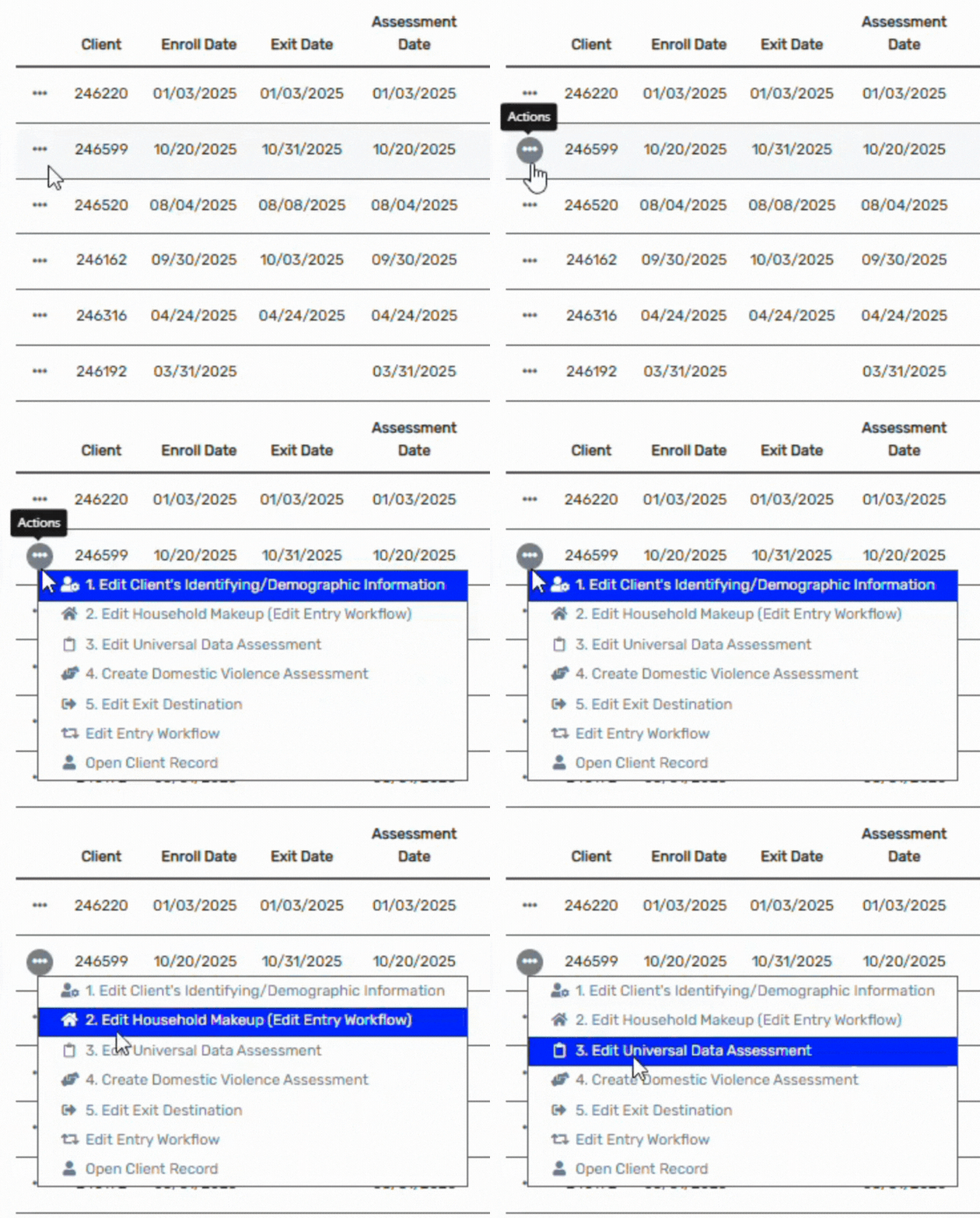
- Select the Action button (three dots) for the row you want to correct.
- Choose the form where the issue appears.
- A pop-up window will open. Enter the correct information.
- Click Save or Finish to update the client record.