
How to Run the PATH Annual Report for State Only
Date Created: 6/5/2025 | Date Updated: 7/7/26
What
If your program receives PATH State only Funding , these are the steps to run the report to submit to DHS
If you need to run the PATH Annual Report to upload to PDX for federal PATH funding, please refer to our article, Running the PATH Annual Report for PDX.
Attention! 🚨 Only clients with a PATH Program entry date will show up on this report.
Follow these steps
Report Location: Reports Workspace > HMIS Reports > PATH Annual Report (2026)
- Navigate to the Reports Workspace
Click on the HUD/HMIS reports folder, then select the PATH Annual Report - FY2026:

-
Then choose the date range for your report:

Choosing the report date range -
Complete only the PATH Program(s) section by selecting your PATH programs, as shown below. To run, click Report:

choosing the programs and Report button - Once it is ready, open your report by clicking the box in the right hand corner.


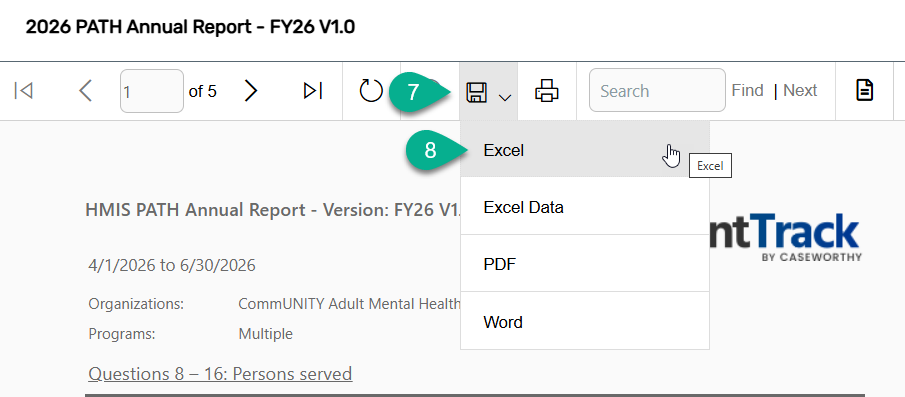
- Select the Save icon.
- Click Excel for a spreadsheet.
- Save your report in a secure location. This report is what you will email to DHS.